How to Set Up Push Notifications for Your PWA (iOS and Android)

Yes, PWA push notifications work on Android, desktop browsers, and iOS (16.4+). But reach and reliability vary dramatically by platform. Android support is mature and full-featured. iOS still requires users to install the PWA to their Home Screen before they can receive notifications, which limits your actual audience to a fraction of visitors. Here's the full picture: how they work, how to set them up, and where they fall short.
Yes, PWA push notifications work on Android, desktop browsers, and iOS (16.4+). But reach and reliability vary dramatically by platform. Android support is mature and full-featured. iOS still requires users to install the PWA to their Home Screen before they can receive notifications, which limits your actual audience to a fraction of visitors. Here's the full picture: how they work, how to set them up, and where they fall short.
Progressive web app push notifications have come a long way. Five years ago, they were Android-only. Today, they work across most modern browsers, desktop operating systems, and (with caveats) iPhones and iPads.
But "supported" and "practical" aren't the same thing. The gap between what's technically possible with web push notifications and what actually reaches your users is one of the most misunderstood topics in mobile strategy.
This guide covers the current state of PWA push notifications: which platforms support them, how to set them up, which services to use, and the real-world opt-in and delivery numbers you should expect. If you're deciding between investing in web push or going native, you'll find the data you need here.
The most effective way to use push notifications is to turn your site into a mobile app. Converting your site to apps is easy (and affordable) with MobiLoud. Click here to learn more about how MobiLoud works and what we can do for you.
Push Notifications for PWA: Broad Overview
Let’s start with the key things you need to know about PWA push notifications:
- A PWA is essentially just an enhanced website, which users can “install” on their device.
- PWAs feature three core components: a service worker, a web app manifest and a secure HTTPS server.
- Though you can send web push notifications from regular websites on Android devices, you need a PWA (and the user needs to install it on their home screen) to do so on iOS.
- Sending push notifications requires integration with a push notification provider, and a service worker to handle user permissions and push functionality.
Bottom line? You can send push notifications from a PWA, but your capabilities are limited.
Crucially, these are web push notifications, rather than native, which is not ideal (and another reason why PWAs aren't effective substitutes for native apps).
We're going to look a little deeper at the technical ins and outs of PWA push notifications, then explain how you can start sending more powerful native push notifications.
The Role of Service Workers for Push Notifications
For a PWA to be a PWA, it needs a service worker file.
A service worker is a JavaScript file that handles background operations for a website, and generally acts as a bridge between your web server and the browser.
This service worker does a variety of jobs, such as caching web content to enable fast loading and offline functionality, synchronizing data between the server and the website even while the website is closed, and - importantly - handling push notifications.
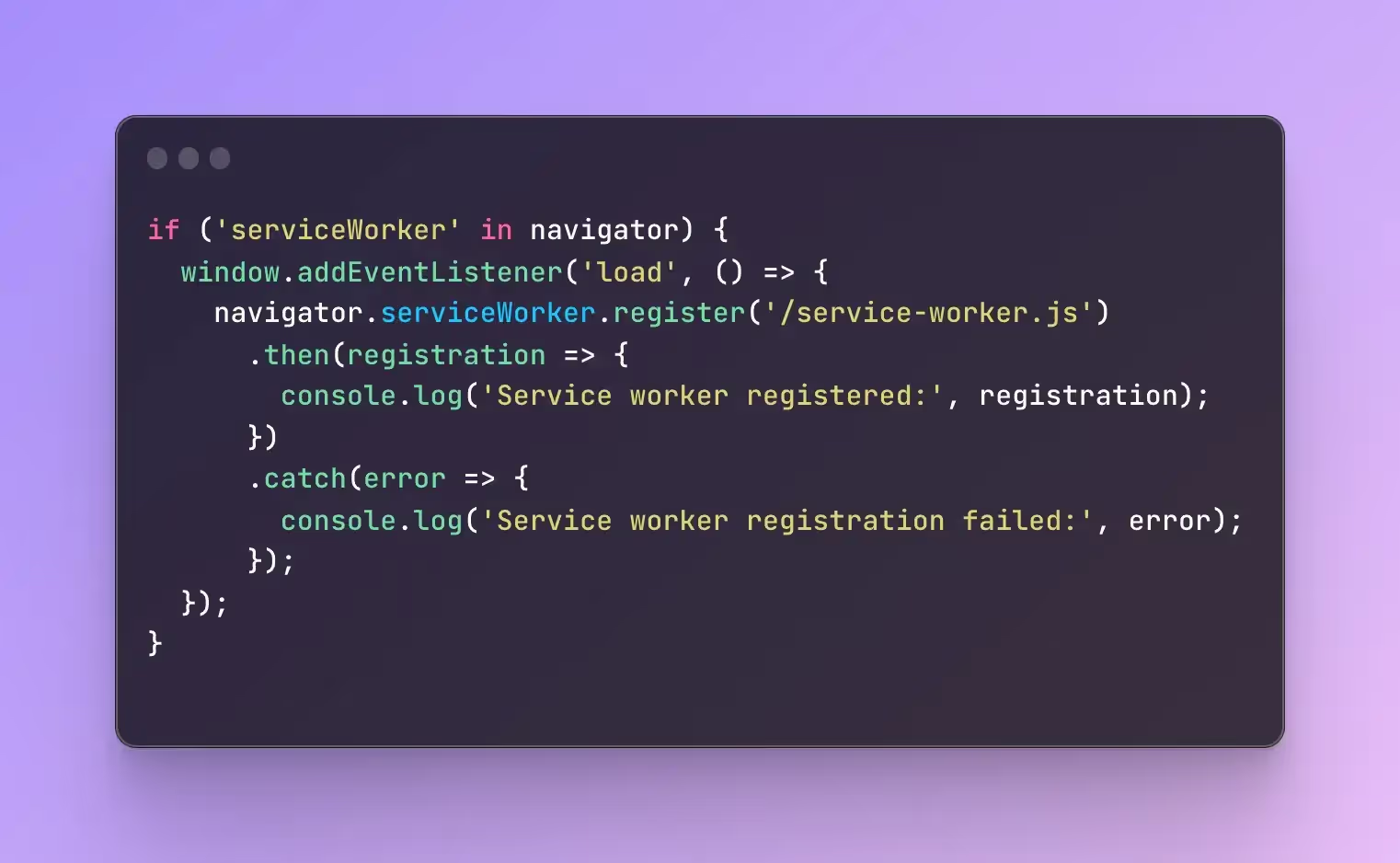
Service workers essentially do all the work required to use push notifications.
- The service worker sends a request to the user for permission to send push notifications.
- Once received, it’s registered on the user’s device and logs the user’s permission status.
- In the background, independently from your website, it listens for a specific “push” event, which signals that you want to send a push notification to the device.
- Assuming the correct permissions are logged, it then fetches the push notification content and displays it for the user.
You don’t need to necessarily know what each line of code in a service worker does, and while it might seem complex, it’s basically all automated and quite straightforward.
Your push notification provider will likely have this file ready to go for you, but it’s good to know a little about how push notifications work under the hood in your PWA.
Step-By-Step Guide to Enabling Push Notifications on a PWA
Now let’s have a look at how to start sending push notifications from your Progressive Web App, step by step.
1. Install a Push Service SDK
While it’s possible to set up your service worker and fully configure everything to do with push notifications on your own, using JavaScript, we’re going to assume you’re not going to do that.
Even if you’re a proficient web developer and have developed the bulk of your PWA yourself, it still makes sense to use a push notification service.
This service should have its own SDK that contains all the code necessary for your push notifications, including a service worker file.
To get an idea of what this will look like, this is OneSignal’s article on setting up their web push SDK.
You’re going to need to add the SDK to your server, as well as pasting a code snippet into your site’s header.
2. Ask the User for Permission
Users need to agree to allow your PWA to contact them with push notifications.
How this works is, the user will get a popup saying that the website wants their permission to send notifications. They can then choose to either allow or deny the request.
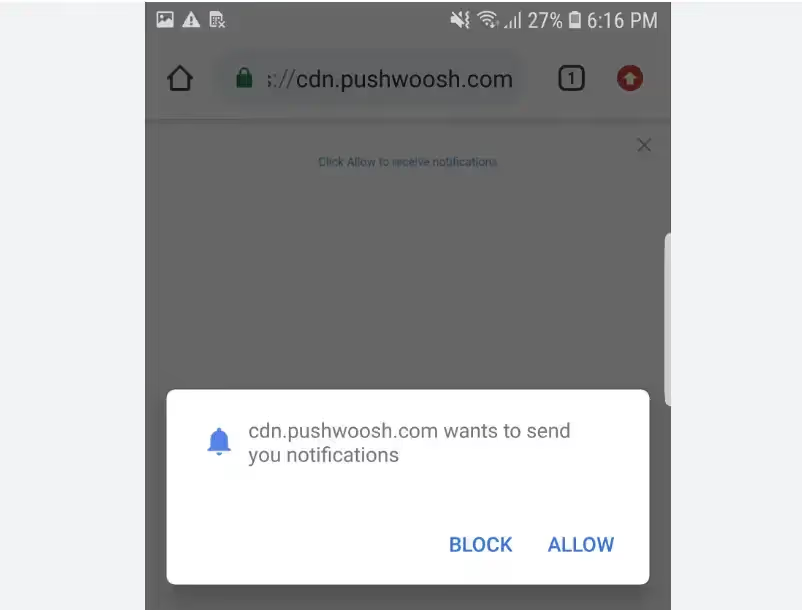
Browsers have a default permission prompt, which is shown to the user straight away when they first visit your site.
Through your push notification service, however, you’ll be able to delay this prompt, and set up a custom prompt that comes before the browser’s native prompt, explaining the value that the user will get by enabling notifications.
It’s advisable to do this, as most people won’t choose to allow notifications straight away.
At the very least, it’s a good idea to delay your permission prompt until the user has been on your site for a little while longer, thus giving them a better idea of whether they want to allow further contact from your site.
One caveat to mention is that iOS users need to “install” your PWA by adding it to their home screen first, before they can subscribe to push notifications.
So you may want to set up a prompt just for iPhone users that asks them to install your PWA (as iOS also doesn’t have an automatic install prompt for PWAs, as Android does).
3. Configure Your Service Worker to Listen for Push Events
Once your service worker is installed, and you’ve logged permission from users to send push notifications, your service worker will need to “listen” for incoming push notifications.
The code will look something like this:
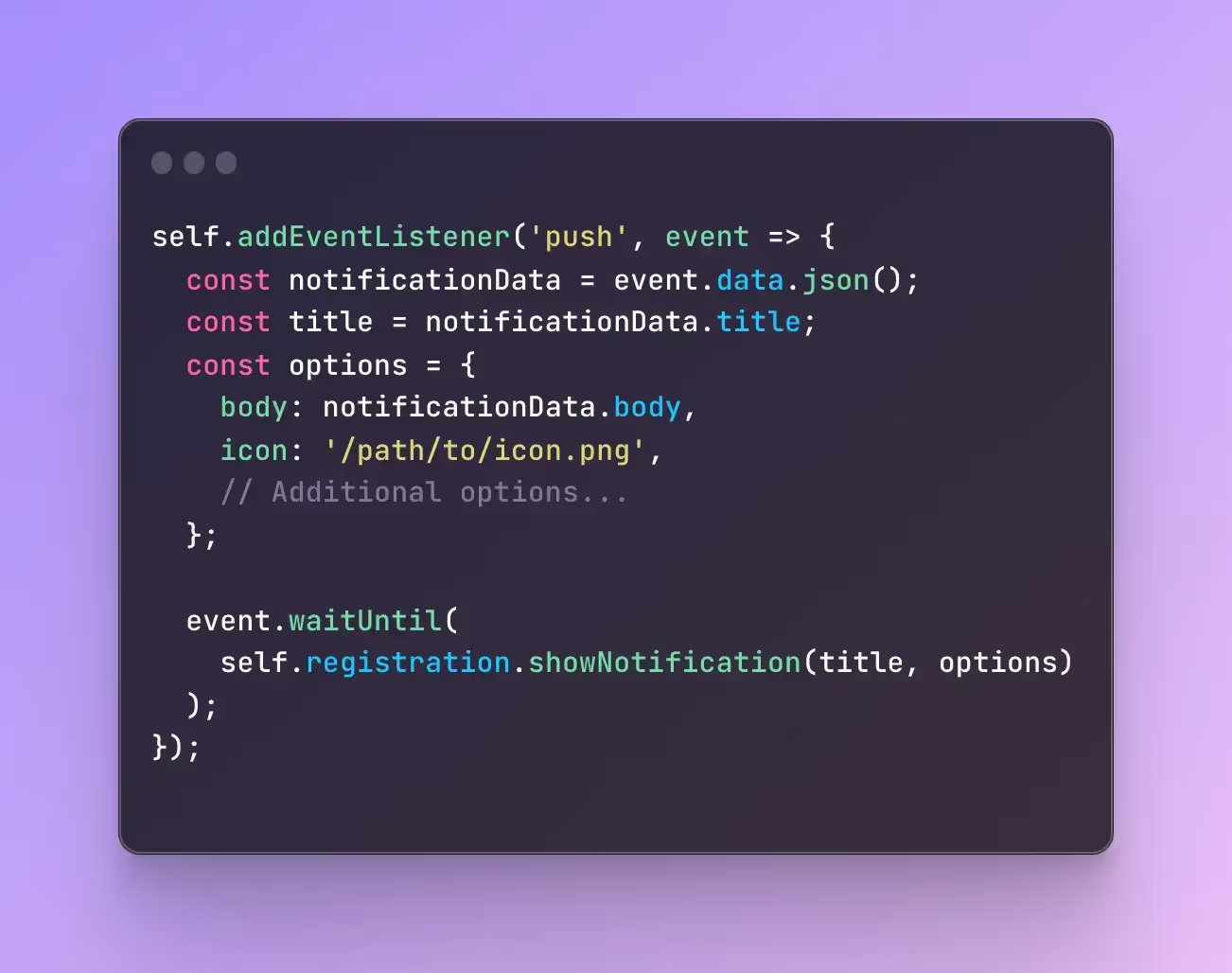
This means the service worker will constantly scan to see if a “push” event has been triggered, indicating that the push notification service wants to send a notification to the user’s device.
Once it picks up a push event, it’ll take the data from the push notification and display it on the user’s device.
This push event is part of the Push API, which is the API that your website users to communicate with push providers in the background of the user's device.
Learn more about the Push API via Mozilla's documentation here.
If you’ve used a push notification service’s SDK to set up your push notifications, there is likely nothing more you need to do at this point, as the service worker should already be configured to listen for events and serve notifications.
4. Send Notifications from Your Push Provider
Once everything is set up, use your push notification provider to start sending notifications.
We advise you to run a couple of test notifications first, to ensure that they work as intended. Then as long as you’re confident it’s been set up correctly, you can start sending push messages for things like:
- New product releases and promotions for ecommerce stores.
- Abandoned cart reminders.
- Shipping updates.
- New content.
- Re-engagement prompts for inactive users.
Don’t want to wrangle service workers? Ship a store-ready app with native push in 30 days, with MobiLoud. Get a free preview to see what's possible.
Best Push Notification Services
The push service you choose will have a significant effect on your experience setting up and using push notifications with your PWA.
Some popular push notification services include:
We encourage you to do your own research on push notification providers, as each has their own feature sets and requires different levels of technical ability to set up.
For most people, we recommend OneSignal for their ease of use (even if you have little technical knowledge), and how easy they make it to segment and set up custom notification triggers.
You can also manage push notifications via your own push notification server and configure all of this manually. Though there’s not a lot of upside to doing this when there are so many sophisticated and easy to use tools on the market to do it for you.
How to Enable Native Mobile Push Notifications for Your PWA
PWA push notifications are powerful, but they have some limitations, as they rely on the web browser to serve notifications to the user.
The alternative is native push notifications, which are sent through the device's operating system.
The good thing - if you've built a PWA (or you have any website that works well on mobile), you already have most of what you need for a native app.
MobiLoud turns your existing website into native iOS and Android apps.
Everything you've built, your design, checkout, integrations, loyalty programs, all of it carries over. You get native push notifications that reach 10x more users, App Store and Google Play distribution, and the performance and trust that come with a native app.
.webp)
There's no rebuild. Your website is the app. When you update your site, the app updates automatically. Every third-party tool, every custom feature, every integration works from day one.
How it works
- Book a strategy call. Share your website URL. We'll walk through your goals, answer questions, and see if it's a fit.
- See your app in action. Our team builds a working preview of your native app so you can see exactly how it looks and performs before committing.
- Go live in 30 days. We handle the build, store submissions, and launch. Your app goes live on the App Store and Google Play while you focus on your business.
We've built 2,000+ apps for ecommerce brands across every platform. Predictable pricing, no revenue share, fully managed from start to finish.
Ready to see what’s possible?
Book a free consultation now to discuss whether MobiLoud is right for you.
FAQs

Convert your website into a mobile app