App Store Screenshot Sizes and Design Guide (2026)

Your app store screenshots are often the difference between a download and a scroll-past. This guide covers the exact dimensions you need for both Apple and Google Play, then walks through the design principles and tools that turn compliant screenshots into conversion drivers.
Your app store screenshots are often the difference between a download and a scroll-past. This guide covers the exact dimensions you need for both Apple and Google Play, then walks through the design principles and tools that turn compliant screenshots into conversion drivers.
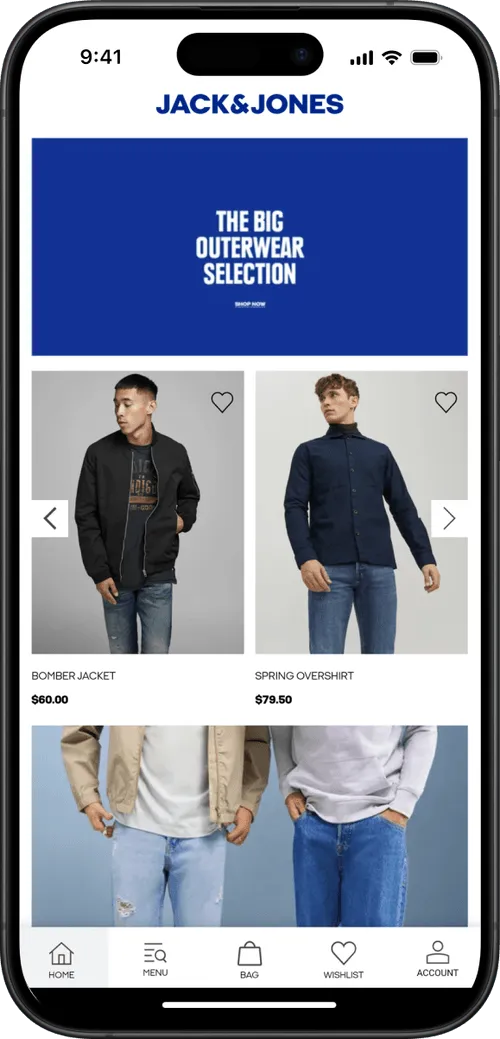
Your app listing has about seven seconds to make its case. In that window, screenshots do more persuading than your description, your feature list, or your release notes.
And yet most brands treat screenshots as a compliance checkbox: snap a few screens, upload them, move on.
That's a missed opportunity. Screenshots are the second most influential factor in download decisions, right behind ratings. Getting both the technical specs and the design right is worth the effort.
This guide covers everything in one place: the exact dimensions Apple and Google require, the design principles that drive conversions, and the tools that make the whole process faster.
Apple App Store Screenshot Requirements
Apple is strict about screenshot specs. Non-compliant images will delay or block your app submission.
What You Need to Know
- Formats: JPEG or PNG
- Quantity: 1 to 10 screenshots per localization
- Content rules: Screenshots must show actual app content in use, not browser captures or mockups that misrepresent the experience
- No transparency: PNG files must have solid backgrounds (no alpha channel)
Required iPhone Dimensions
You must submit screenshots for the 6.9-inch display (or 6.5-inch, which Apple will scale up). Apple automatically generates smaller sizes from your largest submission.
Tip: Design for 6.9" first. Apple scales down to smaller sizes automatically, so you only need to create one set of iPhone screenshots unless you want device-specific designs.
Required iPad Dimensions
You must submit screenshots for the 13-inch display. Apple scales down to smaller iPad sizes.
For the full list of every accepted dimension, see Apple's official screenshot specifications.
Google Play Store Screenshot Requirements
Google Play is more flexible than Apple, but there are still rules to follow.
What You Need to Know
- Formats: JPEG or 24-bit PNG (no alpha transparency)
- File size: Maximum 8 MB per image
- Aspect ratio: Between 16:9 and 9:16
- Resolution range: Minimum 320 px (shortest side), maximum 3,840 px (longest side)
- Quantity: Minimum 2, maximum 8 per device type
- Color space: sRGB recommended (avoid wide-gamut like Display P3)
Recommended Dimensions
Tip: Always fill all 8 phone screenshot slots. Every empty slot is a missed opportunity to sell your app.
Apple vs Google Play: Quick Comparison
7 Design Tips for Screenshots That Convert
Getting the dimensions right is table stakes. What actually drives downloads is the design. These seven principles apply to both stores.
1. Use Large, Scannable Captions
Only 4% of users enlarge portrait screenshots on the App Store. Your text needs to be readable at thumbnail size.
Add a single, bold headline to each screenshot that communicates the core benefit of what's shown. Think of each caption as a billboard: if it needs two reads to understand, it's too long.
Spotify does this well, with simple one-line captions in large, clean type over each screenshot.

2. Lead with Benefits, Not Features
Each screenshot should answer "What's in it for me?" not "What does this button do?"
Structure your screenshot set like a landing page. The first screenshot is your hero, the next few highlight your strongest benefits, and the last one is your closer. Revolut is a good example: each screenshot highlights a distinct benefit (save money, send money, get paid early) rather than listing features.

3. Show Your Brand
Use your color palette, typography, and logo throughout your screenshots. This isn't just about aesthetics. It reassures potential users that they're looking at the real app, not a knockoff.
Consistent branding across your screenshots also makes your listing look polished and professional, which matters more than most teams realize.

4. Combine Screenshots Into Panoramic Designs
Some brands treat their screenshot set as a single canvas, with designs that flow across multiple frames. This creates a "landing page" effect that tells a story as users swipe.
Airbnb and TripAdvisor use this approach, with isometric designs and branded backgrounds that make their listings visually distinctive.


5. Highlight What Makes You Different
Don't waste screenshots on generic features every app has. Show the functionality that sets your app apart from competitors.
If your app has a unique search experience, a standout loyalty program, or an innovative checkout flow, that's what deserves screenshot real estate.
6. Add Social Proof
If you have strong ratings, press mentions, or notable user numbers, work them into your screenshots. A frame that says "Rated 4.8 by 50,000+ users" or "Featured in TechCrunch" builds credibility faster than any feature description.
This works especially well as the last screenshot, a closer that reinforces trust before the user decides.

7. Include a Video Preview
Four times more consumers prefer watching a video about a product than reading about it, and video previews can increase install rates by over 25%.

Apple App Store video specs:
- Length: 15 to 30 seconds
- Must be actual screen recordings
- Resolution: Match your screenshot dimensions (e.g., 1290 x 2796 for 6.9")
Google Play video specs:
- Format: YouTube video link
- Length: 30 seconds to 2 minutes recommended
- No fixed resolution requirement (YouTube handles scaling)
Keep videos short, focused, and subtitled. Most users watch without sound.
Screenshot Design Tools
You don't need a design team to create professional screenshots. These tools handle templates, device frames, and store-compliant exports.
AppScreens.com - Template-based editor with device frames for both stores. Good for teams that want to move fast without a designer.
TheAppLaunchpad.com - Drag-and-drop screenshot builder with a library of layouts and backgrounds. Solid free tier.
Launchmatic.app - Focused on Apple App Store screenshots with pre-built templates designed around Apple's guidelines.
MockUPhone - Free tool specifically for wrapping screenshots in realistic device frames. Useful if you're designing in Figma or Photoshop and just need the frame layer.
Figma / Canva - If your team already uses Figma or Canva, both have app store screenshot templates available. Figma gives more control; Canva is faster for non-designers.
A Quick Design Checklist
Before you upload, run through this:
- Screenshots match the required dimensions for each store
- No transparency in PNG files
- Text is readable at thumbnail size (don't enlarge to check, shrink your screen)
- First screenshot communicates your strongest value proposition
- Each screenshot highlights a different benefit or feature
- Branding is consistent across all frames
- You've filled all available slots (10 for Apple, 8 for Google Play)
- Device frames are current (no outdated bezels or notch styles)
- Video preview is under 30 seconds (Apple) or 2 minutes (Google Play)
Doing screenshots right is closer to a science than an art. Nail this, and you give yourself the best change to get the download after doing the hard work to get someone to land on your listing.
FAQs

Convert your website into a mobile app